Learning in the Lab
This page walks you through a full learning session – from catalog to completed task.
1. Pick a module from the catalog
After login you land in the catalog at techlogia.de/lab/lessons. All available modules appear as cards.
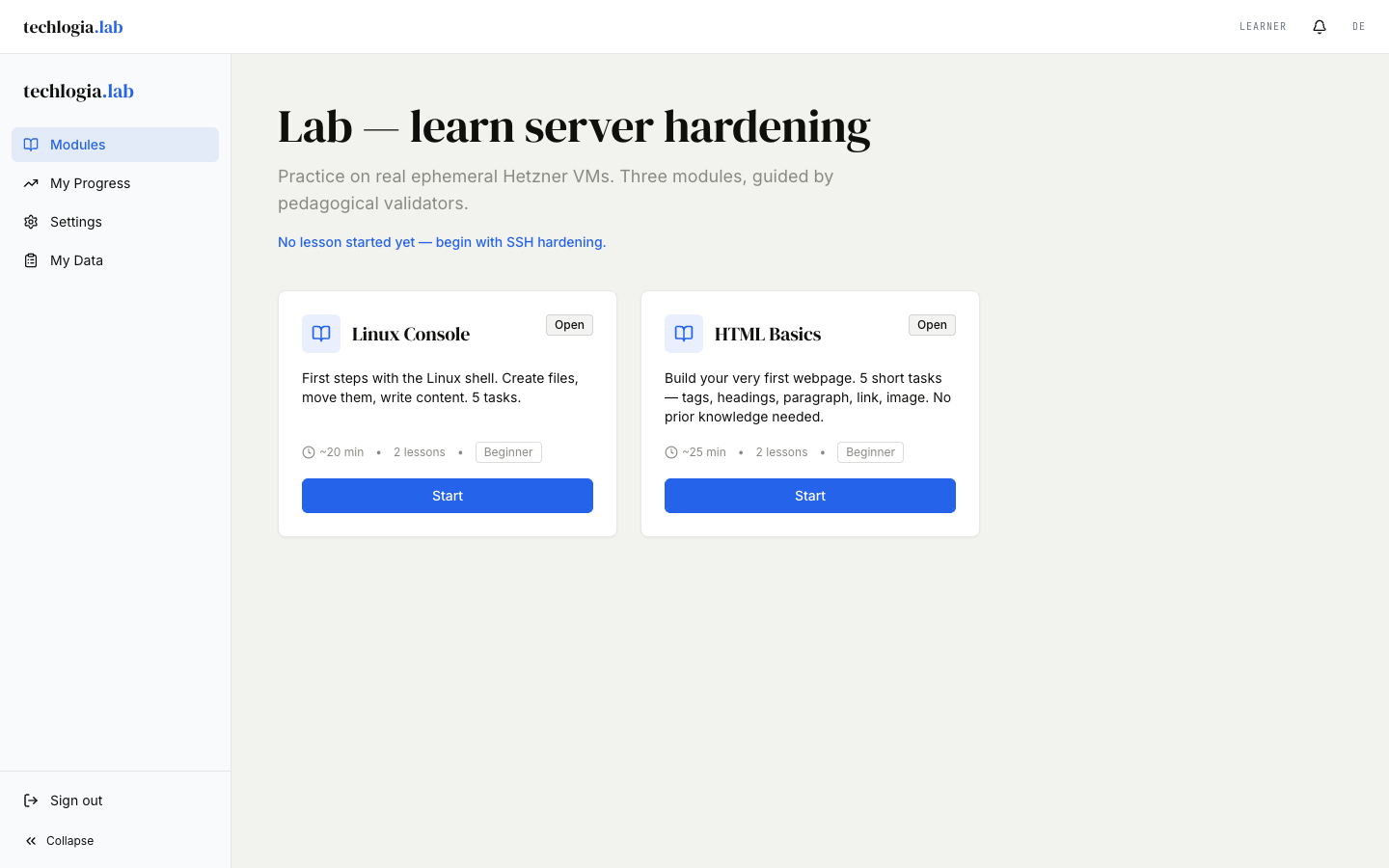
Each module card shows:
- Title of the module
- Difficulty (Beginner, Advanced, Expert)
- Estimated duration (typically 30–60 minutes)
- Your progress (how many tasks passed)
Click a card to open the lesson.
Class students may see fewer modules
If your teacher hid certain modules for your class, they don't appear in the catalog. That's normal and can vary by class.
2. Start a session
On the lesson page click Start session. The Lab now does several things:
- Check quota – if you already had 3 sessions today (or your class-override), you'll see a notice.
- Check terms status – on a new terms version, a modal appears with the current text.
- Check parental consent – for learners under 16 this must be in place.
- Provision a VM – a Linux VM in Frankfurt boots. Takes 60–90 seconds.
During provisioning you see a progress hint. You can safely switch tabs – the VM keeps running in the background.
Cost note
Each session triggers variable cloud cost (typically under €0.50 per session). This is free for you as a learner – Techlogia covers it. The quota limits the platform's effort.
3. Understanding the learning environment
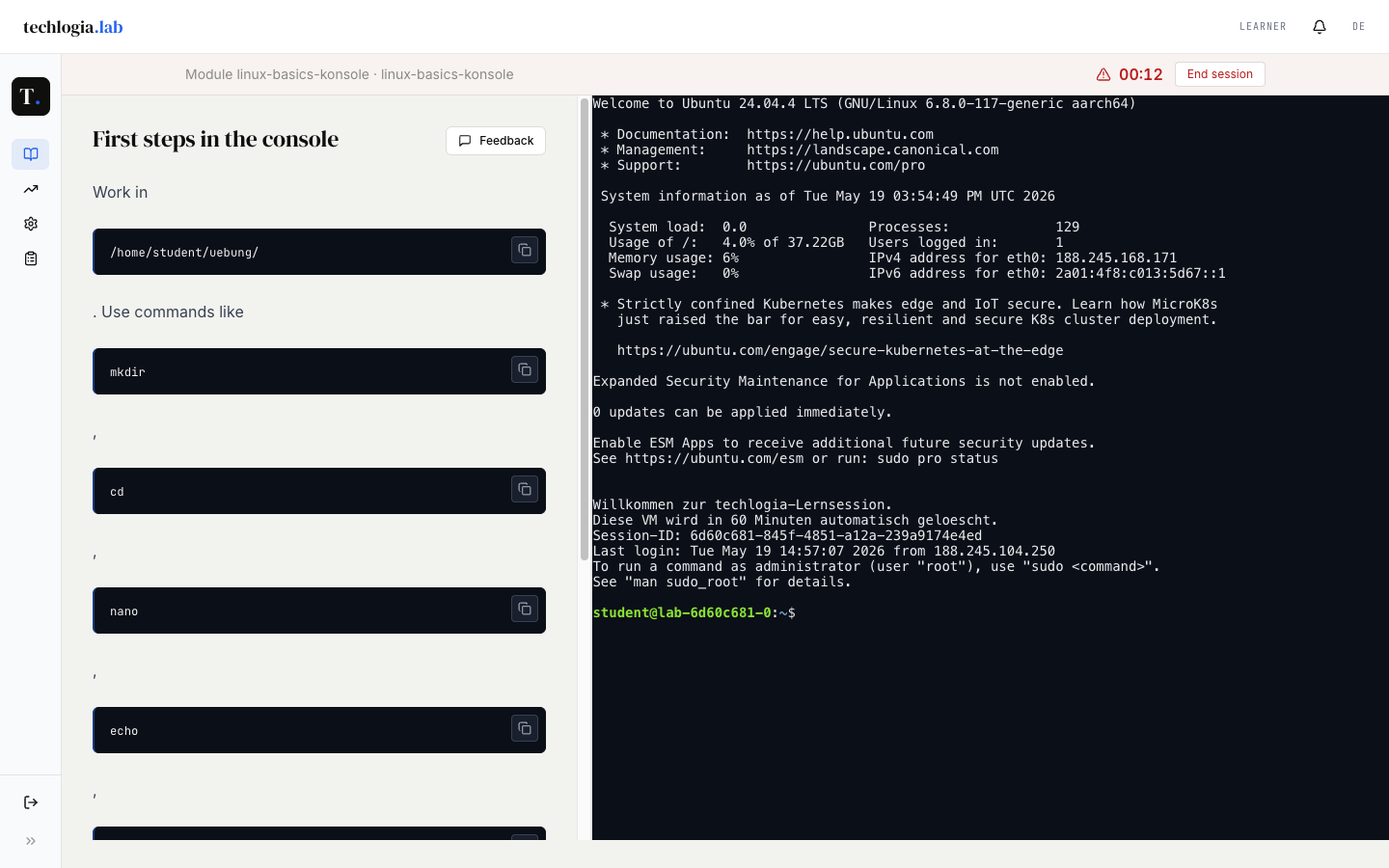
Once the VM is ready you see the environment:
┌─────────────────────────┬──────────────────────────────┐
│  INSTRUCTIONS           │  TERMINAL                    │
│  (Markdown)             │  ┌────────────────────────┐  │
│                         │  │ user@vm:~$ _           │  │
│  Step 1: …              │  │                        │  │
│  Step 2: …              │  │                        │  │
│                         │  └────────────────────────┘  │
├─────────────────────────┴──────────────────────────────┤
│  TASKS                                                 │
│  □ Task 1: nginx listens on port 80                    │
│  □ Task 2: …                                           │
└────────────────────────────────────────────────────────┘
- Left: Instructions – the lesson in Markdown
- Right: Terminal – a real Linux terminal in your browser
- Bottom: Tasks – list of this lesson's tasks with status
At the very top you'll see a countdown with the remaining session time.
4. Working in the terminal
The terminal is a real Linux on a cloud VM, not a simulator. You have:
sudo– you are a privileged user- Internet – installing packages works (
apt,curl, …) - Temporary files – everything you put under your home is gone after session end
Typical commands that work in the Lab:
sudo apt-get update
sudo apt-get install -y nginx
sudo systemctl status nginx
nano /etc/nginx/sites-available/default
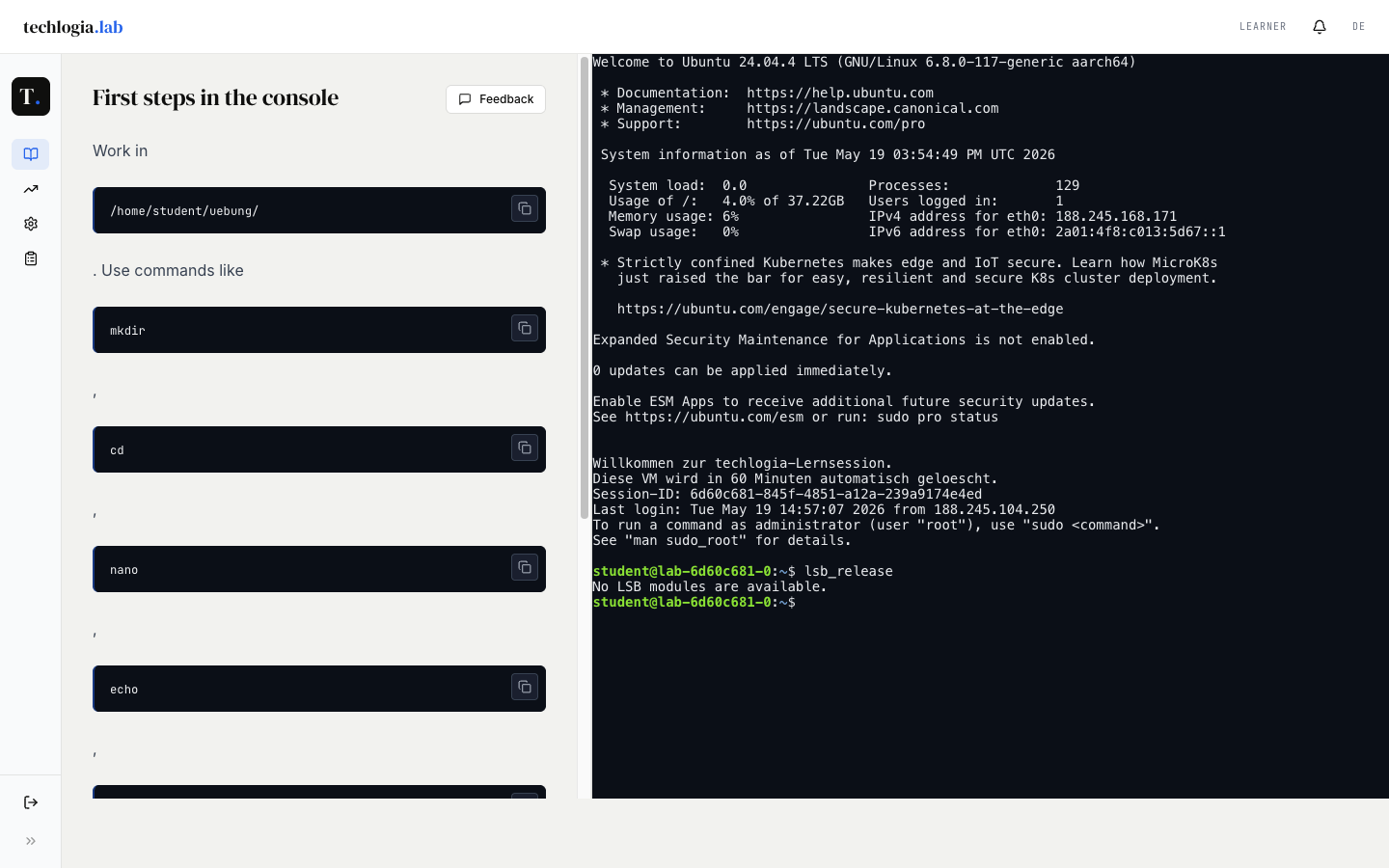
lsb_release), real output from the Linux system, new prompt.Terminal tips
- Copy/paste:
Ctrl+Shift+CandCtrl+Shift+V(Linux/Windows) orCmd+C/Cmd+V(Mac) - Multi-line: Multi-line text can be pasted as a block.
- If the terminal hangs: Click into the terminal, press Ctrl+L or reload the page – the session stays active.
5. Checking tasks
When you think you've solved a task, click Check below it. The Lab runs an automatic test inside your VM and shows the result:
A green box appears with "Task passed". The task is marked ✓ in the list. You can continue with the next task.
A red box appears with concrete feedback – for example:
"nginx is installed but does not listen on port 80. Check the configuration in
/etc/nginx/sites-available/default."
Fix the problem in the terminal and click Check again.
Order
You can check tasks in any order. There is no hard precondition. Some tasks build on each other conceptually – the lesson description gives a recommendation.
6. Using hints
If you're stuck, expand the hints. Each task has up to three levels:
| Level | Content |
|---|---|
| Hint 1 | Light nudge – usually a question or a concept |
| Hint 2 | Concrete example – usually a command or config snippet |
| Hint 3 | Step-by-step solution |
Hints expand on click. There is no penalty for using hints – they are a learning aid.
7. Ending a session
There are three ways to end a session:
- End yourself – click End session in the countdown header. The VM is deleted immediately.
- Auto-end after 60 minutes – a warning appears two minutes before. If you do nothing, the session ends automatically.
- Close the tab – if you close the browser tab, the session runs until the 60-minute limit. On re-login you can resume (resume card).
Progress vs. VM content
Your progress (which tasks are passed) is kept permanently. The VM contents (files, installed packages) are gone as soon as the session ends.
8. Resume an active session
If you log in again while a session is still active, you'll see a card Resume active session at the top. One click brings you back into the running lesson – without starting a new session and without quota consumption.
9. Giving feedback
The player has a feedback button. Use it to:
- Report content errors (e.g. wrong instruction)
- Suggest improvements
- Describe validator issues
Up to 5 feedback entries per day. The Techlogia team reads all input.
FAQ while learning
"Validator says passed but my solution looks wrong"
The validator only checks the defined outcome. An unusual solution can be perfectly correct. Re-read the task description – sometimes it hints at how an outcome should be achieved.
"Validator says not passed but I'm sure it's right"
Look closely at the feedback – often one detail is missing (e.g. a service restart command). If you're sure the validator is wrong, use the feedback button – the team checks it.
"VM provisioning takes forever"
60–90 seconds is normal. If nothing happens after 3 minutes:
- Provisioning fails → no quota is consumed, you can retry immediately
- If errors persist: send feedback or contact info@techlogia.de directly
"I accidentally clicked End"
You need to start a new session. If you have no quota left today, your task list is still valid – you can continue exactly there tomorrow.
"How long does a session actually run?"
60 minutes from the moment the VM is ready (not from provisioning start). The countdown shows the remaining time at the top of the environment.
Next step
- Progress & homework – statistics, achievements and assignments from your teacher.
- Account & privacy – password, two-factor login, account management.