Manage Teachers
In the school dashboard under "Teachers" you find all teacher accounts at your school. Here you invite new teachers, manage existing ones and remove former colleagues.
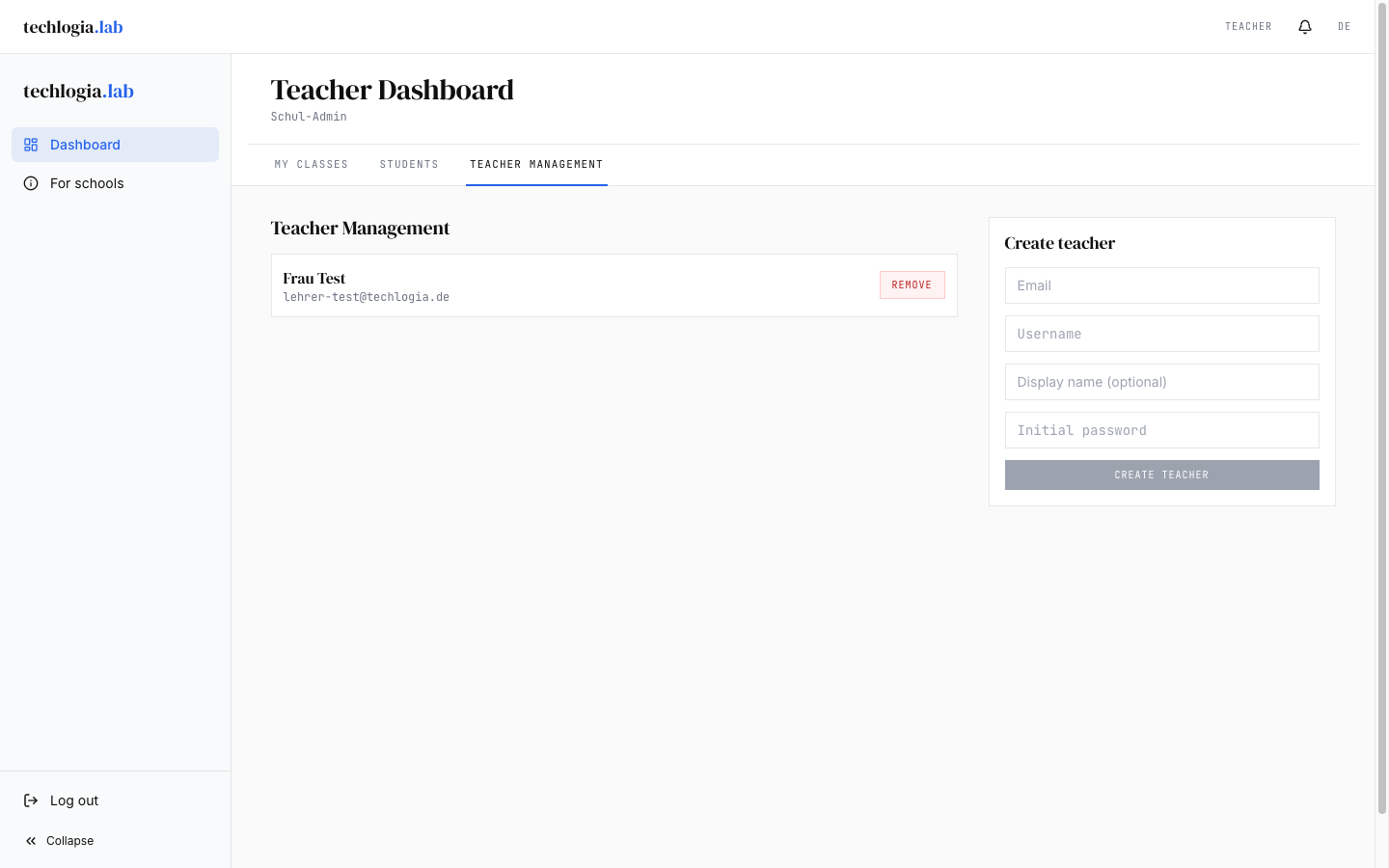
Invite a teacher
- School dashboard → New teacher
- Fill in the fields:
| Field | Description | Required? |
|---|---|---|
| Email address | The teacher's work address | ✓ |
| Display name | Full name as shown in the Lab | ✓ |
| Optional: Note | E.g. subject, grade level | optional |
- Save
The Lab creates:
- a teacher account with status "Invited"
- an invitation email with activation link to the given address
The teacher clicks the link, sets a password and can then log in.
Status display
- Invited – teacher received the email, hasn't used the link yet
- Active – account is activated and ready
- Deactivated – account was removed; login is blocked
Invite multiple teachers at once
Currently invitations work only individually. To onboard a whole staff at once:
- Send the list to info@techlogia.de – Techlogia can do a bulk invitation manually
- Or create accounts one by one (typically 30 seconds per teacher)
Remind an invited teacher
If a teacher doesn't click the activation link:
- Teacher list → pick teacher
- Resend invitation
- A new email with a new link is sent
The old link becomes invalid. To invite freshly (e.g. wrong email address), delete the account and create a new one.
Change teacher data
- Teacher list → pick teacher → Edit
- Change display name or note
- Save
Change email address: for security reasons the teacher must do this themselves via their account profile (password confirmation + new confirmation link to the new address).
Remove a teacher from the school
When a teacher leaves your school:
- Teacher list → pick teacher → Remove from school
- Safety prompt: "Which classes are co-deactivated?" (the system shows a list)
- Make a decision:
Option A: Remove teacher, keep classes
- Classes remain, but without owner
- You or Techlogia can assign the classes to another teacher
- Students can still learn, but nobody can assign new homework or add students
Option B: Remove teacher, archive classes
- Classes are marked inactive
- Students can still log in but see "Class is archived"
- Data remains for analysis
Final?
Removing a teacher is immediate. The teacher can no longer log in. The account is not deleted – if the teacher returns later, it can be reactivated.
Data fate after removal
- Teacher account: deactivated, but exists
- Class and student data: retained (orphaned or archived classes, depending on your choice)
- Student progress data: retained
Permanent deletion can be done by Techlogia on request – contact info@techlogia.de.
Reactivate a teacher
If a deactivated teacher returns:
- Teacher list → filter to "Deactivated"
- Pick teacher → Reactivate
- Teacher gets a new invitation email (for password recovery if needed)
Still-existing classes are reassigned to the reactivated teacher if they were the original owner. If classes were transferred to other teachers in between, that stays.
FAQ
"A teacher can't log in"
Possible causes:
- Account not yet activated (status "Invited") → resend invitation
- Account deactivated → reactivate
- Password forgotten → teacher uses the forgot-password flow themselves
- Wrong email address → recreate the account
"What happens to homework of a removed teacher?"
Homework is bound to the class, not directly to the teacher. It persists as long as the class exists. If the class is archived, the homework becomes inactive (students no longer see it).
"Can two school admins work in parallel?"
Yes, a school can have multiple school admins. Ask Techlogia to enable additional ones. There is no "master admin" – all school admins have equal rights.
"Can I as school admin create a class myself?"
Not directly. To create a class you additionally need the teacher role. Ask Techlogia to add the teacher role to your account – then you see both areas.
"How many teachers can my school have?"
Not hard-limited. For very large schools (>50 teachers) talk to Techlogia – we can arrange a bulk-invitation process and bundle onboarding.