Getting Started as a Student
You can log in two ways:
- With email and password – if you learn on your own or your school does not use the class system.
- With class code and student name – if your teacher added you to a class.
Option A: Create an account with email
1. Open registration
Go to techlogia.de/lab/auth/register.
2. Enter your data
You'll provide:
- Email address – used for login and notifications
- Password – at least 8 characters, with letters and digits
- Display name – how you appear in the Lab
- Year of birth
3. Birth-year logic
If your birth year says you're under 16, the Lab additionally asks for:
- The email address of a parent or legal guardian
A consent link is sent to that address. Only after a guardian confirms can you start sessions.
Why? GDPR (Art. 8) requires guardian consent for learners under 16. More under Account & privacy.
4. Confirm your email (double opt-in)
Right after registering you'll receive a confirmation email from info@techlogia.de. Open it and click the link.
No link arrived?
Check your spam folder. The link is valid for 48 hours. If it expired, register again with the same address – the old request is automatically replaced.
5. Log in
After confirmation, go to techlogia.de/lab/auth/login and sign in with email and password.
6. Accept the terms
On your first login the Lab shows the current Terms of Use. You can read the full text before accepting. Only then can the first session start.
Terms version: If the terms change, the dialog appears again with the new version. Earlier versions are visible in your account.
Option B: Log in with a class code
If your teacher added you to a class, you do not need an email address. The teacher gives you:
- the class code (e.g.
SSH7A2K9X) - your student name (e.g.
Max M.)
1. Open the student login
Go to techlogia.de/lab/auth/schueler-login.
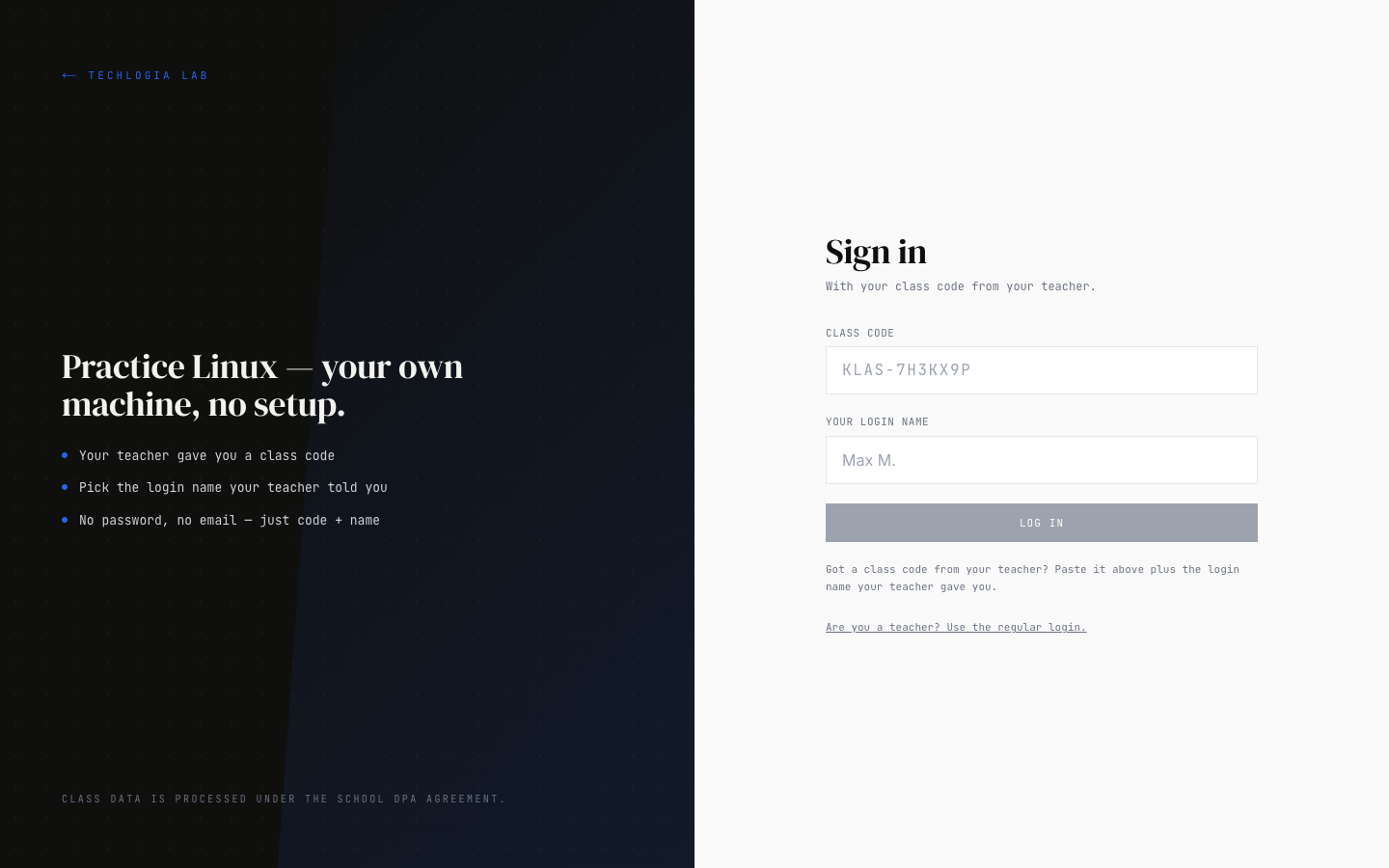
2. Enter code and name
Type in the class code and your student name exactly as your teacher provided (case sensitive).
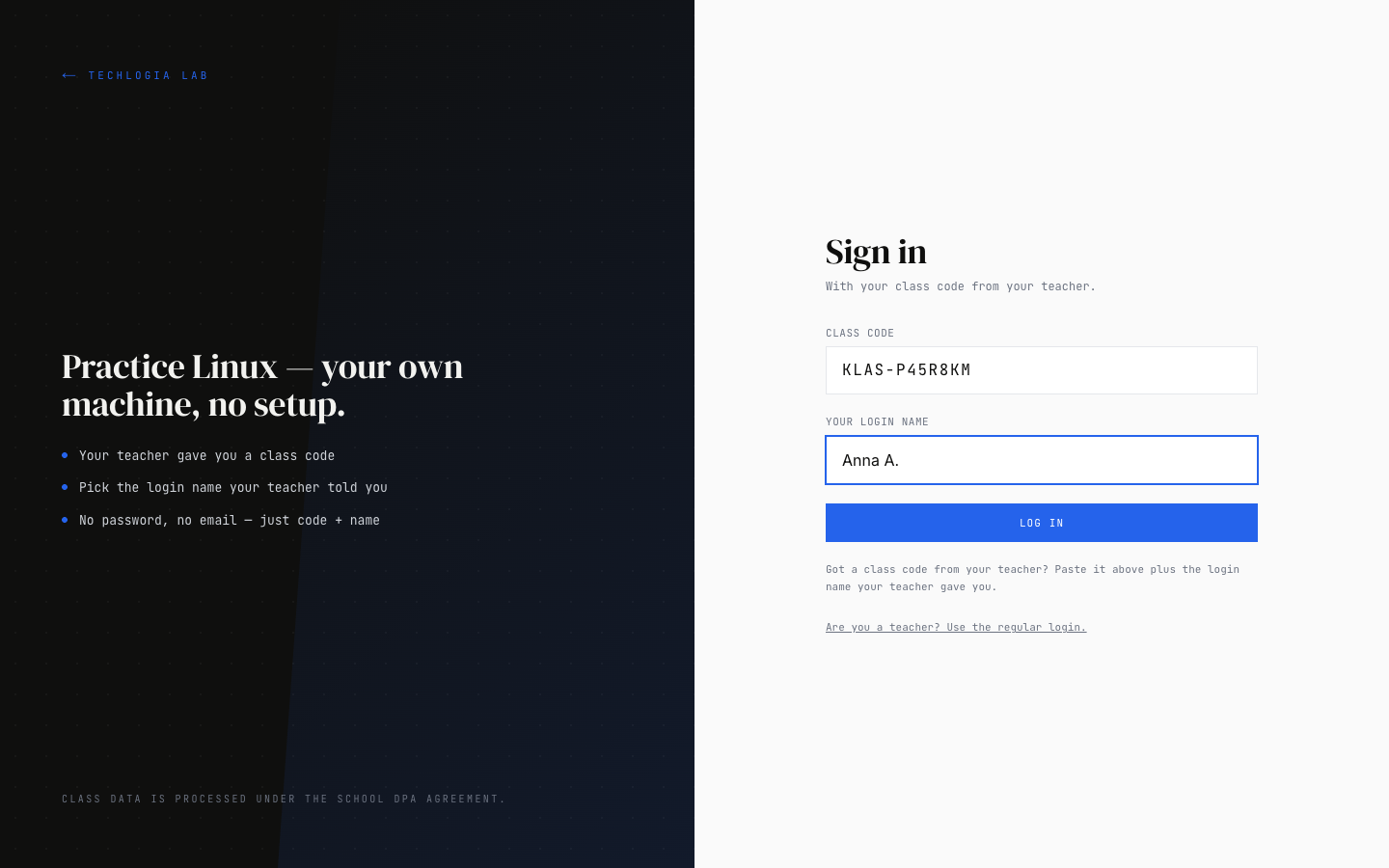
3. Accept the terms
Class-code login also shows the terms dialog on first use.
Privacy in class mode: Class-code logins do not collect personal email addresses. Your account is linked internally to a pseudo-address visible only to your teacher and the school admin.
Common onboarding issues
"Email already registered"
You probably signed up earlier. Use the forgot-password flow and set a new password.
"Account not yet confirmed"
The confirmation link from the email wasn't clicked. Check spam. If nothing arrives, contact info@techlogia.de – we'll resend the link manually.
"Parental consent missing"
Your guardian hasn't clicked the confirmation link yet. Ask them to check their inbox. If the email doesn't arrive, the guardian can also reach out to info@techlogia.de.
"Class code invalid"
The code may be mistyped (confusable characters: 0 vs. O, 1 vs. l). Ask your teacher for the correct code – teachers can re-display it anytime.
"Student name not found"
Your name must exactly match what the teacher entered. Dots and abbreviations count (Max M. is not the same as Max Mustermann).
Security tips
- Enable two-factor authentication (MFA) – see Account & privacy.
- Use a unique password – different from other services.
- Don't share the class code – it belongs to the whole class. Others with the code could affect your learning progress.
Next step
You're logged in? Continue to Learning in the Lab.