Homework
Homework is a lesson you assign to your class with a deadline. Students see open homework prominently in the catalog and account area.
Create homework
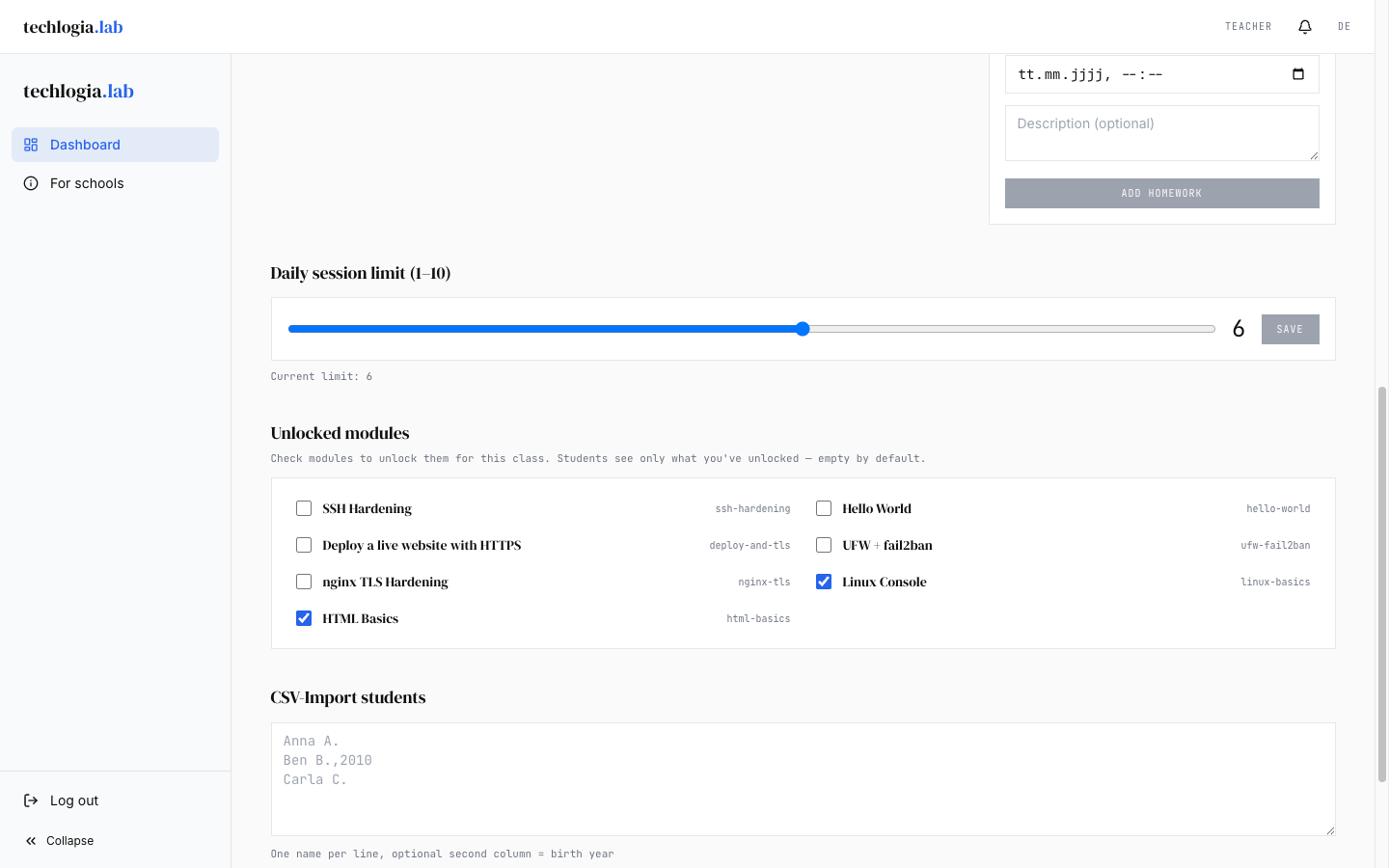
- On the class detail page → tab Homework
- Click New homework
- Fill in the fields:
| Field | Description | Required? |
|---|---|---|
| Lesson | Pick from the published lessons | ✓ |
| Title | Display name (e.g. "Homework for next week") | ✓ |
| Description | Hints or focus areas (Markdown) | optional |
| Deadline | Date + time when it should be done | ✓ |
- Save
The homework is immediately visible to all students in the class.
Where students see the homework
Right after creation the homework appears for students:
- In the catalog – as a banner above the module cards ("📚 Homework: … due by June 5 2026")
- In the account area – under "Homework" as a list with deadline and status
When the student opens the lesson, they may see an additional note: "This lesson is homework for class 7a 2025/26."
Description – what to write?
The description is shown to students. Useful contents:
- What was discussed in class that the homework deepens
- Which tasks in the lesson are particularly important
- Which aids are allowed (e.g. "You may use hints", "Try without hints")
- When you'll review (e.g. "I'll go through it on Thursday")
Markdown is supported – use bold, italic, bullet lists, links.
Set the deadline
- Date and time – e.g. "5 June 2026, 23:59"
- Timezone: the deadline is in German local time (Europe/Berlin). Students see it in their own timezone if different.
Realistic deadlines
- Over the weekend: deadline Sunday 23:59 – buffer time for internet issues.
- Tight deadlines: avoid sub-24-hour deadlines. Students might no longer reach their quota if they exhausted the limit.
- Very long deadlines: over 30 days – fine, but the homework loses visual weight in the banner.
Multiple homework in parallel
You can have as many homework assignments in parallel as you like. Students see them sorted by deadline (ascending): nearest first.
Recommendation: no more than 3–4 parallel assignments – otherwise the banner becomes cluttered.
Edit homework
As long as the deadline isn't reached, you can:
- Change title and description
- Adjust the deadline
- Delete the homework
Caution: Moving the deadline forward (e.g. "must be done tomorrow instead of Friday") can surprise students. Moving it backward is usually fine.
Delete homework
- Homework list → Delete
- Confirm
The homework immediately disappears from the student view. Already-made progress is kept – only the "lesson is homework" link is removed.
Watch live when a student is stuck
As long as a student has an active Lab session, they appear in the list Active student sessions on the class detail page – with the button Live watch (preview).
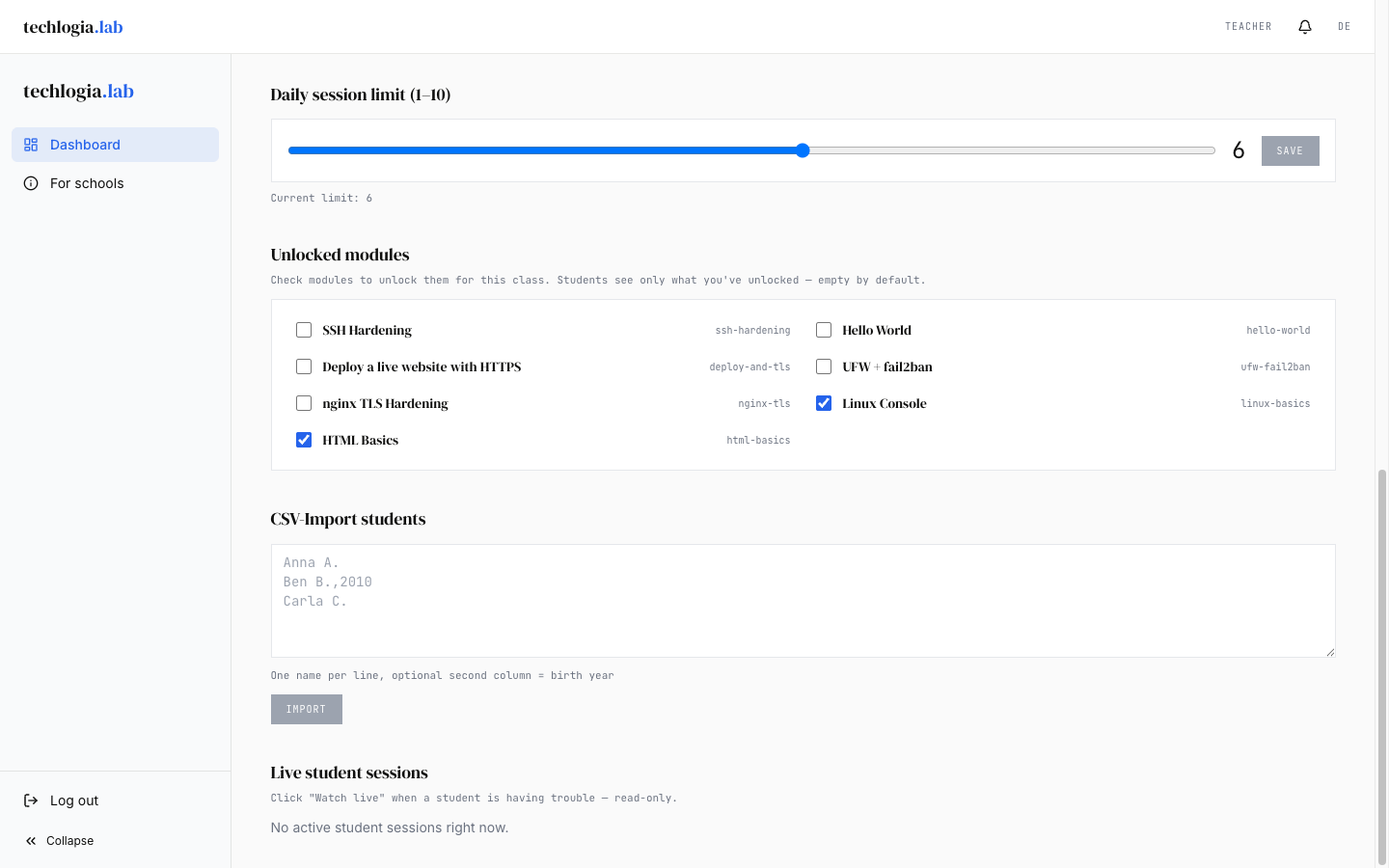
Read-only preview
Live watch is explicitly not intervention. You cannot help via the write channel – that still happens verbally or via screen sharing. The mode exists for situations where the student cannot describe what they see.
Analysis – who completed what?
On the homework detail page you see a student table:
| Column | Meaning |
|---|---|
| Student | Name |
| Status | Not started / In progress / Completed |
| Tasks passed | e.g. "3 of 4" |
| Last activity | When last checked? |
Click a student to see a detailed timeline of individual validation attempts (passed/failed).
Definition of 'completed'
A homework counts as completed when all tasks of the assigned lesson are passed. If the lesson has 4 tasks and the student passed 3, it counts as "In progress".
What happens after the deadline?
- Student view: the homework disappears from the banner and account overview.
- Teacher view: the homework stays in your list with the hint "Deadline passed". You can view the final state of each student.
- Lesson remains available: students can still work the lesson via the catalog – just not flagged as "homework".
There is no automatic lock of the lesson. If you want students to lose access after the deadline, combine the homework with module visibility.
Best practices
Assign one lesson to multiple classes
If you distribute the same lesson across multiple classes, you must create a separate homework for each class. A "bulk" function does not exist – this keeps evaluation per class clean.
Combine with an exam
Homework is not an exam mode. Students can use hints, retry tasks multiple times, and ask for help. To exclude this, do it organizationally (e.g. "No hints" in the description) – the Lab doesn't enforce it.
Differentiation
For a mixed-level class:
- Assign two homework items with different lessons
- Description: "If you still need confidence, do A. If you're further along, do B."
There's no required selection – students see both.
FAQ
"Can students decline a homework?"
No, in the Lab system. Students see homework until they solve all tasks or the deadline lapses.
"What if a student has no quota left?"
If the student already used their 3 sessions today, they see a quota notice when trying to start a new session. Solution:
- Set a generous deadline so there's time the next day
- Raise the quota override for the class to 4–10
"Can I assign homework outside of class mode?"
No. Homework is always bound to a class. If you have students not yet in a class, add them first.
"Student says they don't see the homework"
Possible causes:
- Student isn't in the class (check student list)
- Student is logged into a different account (have them check the email top-right)
- Deadline has passed (visible as "Expired" in your homework tab)
- Browser cache – have the student reload with Ctrl+Shift+R
Next step
- Class progress – detailed reports for the whole class.
- Modules & quota – control what students see in the catalog and how many sessions they get.