Modules & Quota
Two important controls per class:
- Module visibility – which modules do my students see in the catalog?
- Sessions quota override – how many sessions per day may each student start?
Module visibility
By default your students see all published modules in the catalog. You can hide individual modules for your class – for example:
- You want focus on a specific module
- A module is too hard for the class level
- A module covers a topic not in the curriculum
Hide a module
- Class detail page → tab Modules
- You see a list of all published modules with a visibility toggle
- Toggle off → module is no longer visible to students of this class
- Save
Students see the change on next catalog access (no reload needed, the catalog loads live).
What happens to already-made progress?
- Passed tasks stay passed.
- Active sessions stay active – a student mid-lesson is not kicked out.
- Stats remain – the module still appears in the student's account area (just not in the catalog).
If a student opens the lesson via direct link, they see "This module is not enabled for your class".
Re-enable a module
Toggle on – immediately visible.
Pro tip: module visibility + homework
To simulate an exam: 1. Hide all modules except the exam module. 2. Assign the lesson as homework with deadline = end of exam time. 3. After the deadline, re-enable the other modules.
Sessions quota per class
By default each learner has 3 sessions per day (UTC reset at midnight).
You can set a higher value for your class – useful for:
- Intensive workshops (full day of Lab work)
- Exams or tests with retry options
- Students on slow internet who need more attempts
Set a quota override
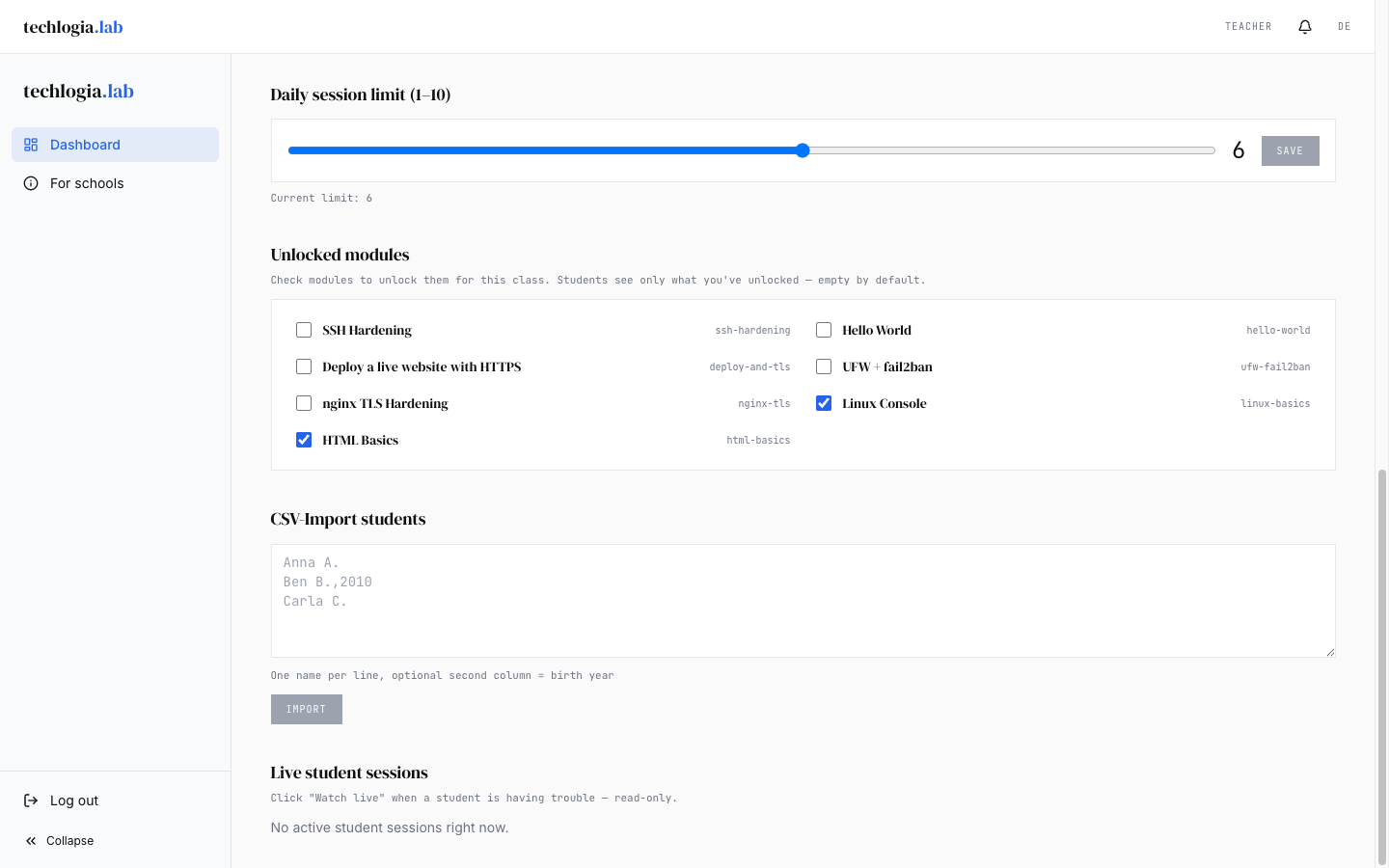
- Class detail page → settings → Sessions per student/day
- Pick value: 4 to 10
- Save
The new value applies immediately and to all students in the class. Existing sessions or already-spent quota are not reset – the higher value applies from the next quota check.
Example
- Student already used 3 sessions today.
- You set quota to 6.
- Student can start 3 more sessions now (6 - 3 = 3 free).
Revoke the override
Set the value back to 3 (default). Students return to the standard limit.
Maximum 10
Values above 10 are currently not possible. For a special case (e.g. a hackathon), contact info@techlogia.de – we can arrange it case by case.
Why is there a limit at all?
Each session starts a real cloud VM that incurs cost (electricity, hardware, ops). The standard limit of 3 covers typical learning situations:
- First session: try the task
- Second session: restart after a mistake
- Third session: deepen understanding
If you raise the limit for your class, cost for Techlogia rises linearly. Currently bearable for the platform; should this become a scaling issue, we may address it in the future.
FAQ
"Can I set different quotas per student?"
No, currently only per class. If one student needs more: temporarily move into a "VIP class" or send feedback to Techlogia.
"Student says they don't see a particular module – I didn't hide it"
Possible causes:
- Module is not yet published – only platform admins see draft modules.
- Student isn't logged in or is in the wrong account.
- Browser cache – reload with Ctrl+Shift+R.
"I want to hide certain tasks within a lesson"
Not possible at the task level. Teachers only control whole modules and assign whole lessons as homework. To cover only certain tasks, do it organizationally in the homework description.
"Can students bypass quota?"
No. Quota is checked server-side as soon as a session starts. Using multiple accounts to bypass would violate the terms.
"What if I set quota to 10 and my students exploit it?"
Per class of 30 × 10 = 300 VMs/day. The Lab handles it, but it loads the platform. Set 10 only when you really need it – 3–4 is enough in everyday life.
Next step
- Class progress – reports on the whole class and individual students.