Lab for School Admins
As a school admin you represent your school towards the Techlogia platform. Your main task: create and manage teacher accounts. The teaching work (classes, students, homework) is done by teachers in their own area.
Topics in this section
-
Manage teachers
Invite teachers, manage existing accounts, remove teachers who have left.
Prerequisite
Your school admin account is created by Techlogia after your school is onboarded. Required:
- Data processing agreement (AVV) with Techlogia (GDPR Art. 28)
- School request to info@techlogia.de – short name, contact, planned number of teachers
- Setup by Techlogia – you receive an invitation email with an activation link
After activation, log in at techlogia.de/lab/auth/login. You land in the school dashboard at techlogia.de/lab/schulen.
What a school admin sees
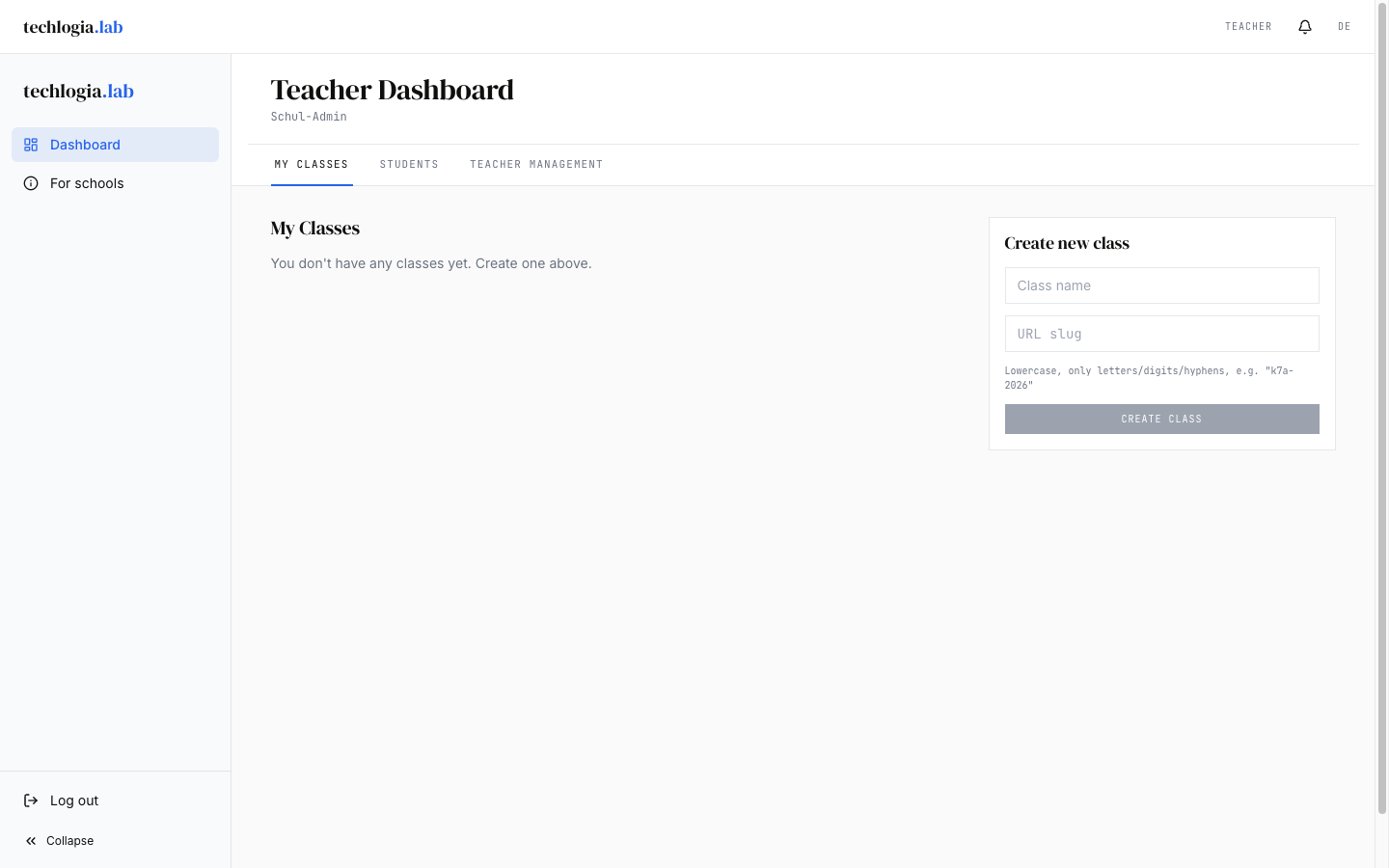
- School overview – name, AVV status, number of teachers/classes/students
- List of teachers – with status (active, invited, deactivated)
- List of all classes of the school – read-only
You do not see individual student data directly. For reports, ask the responsible teacher – they have full access to their classes.
What a school admin cannot do
- No creating classes or editing them – that's a teacher task
- No adding students or assigning homework
- No module/lesson content editing – that's the platform admin
- No student password resets – students use the forgot-password feature or ask their teacher
If you need these capabilities, you can hold two roles at once (school admin + teacher). This is set up during onboarding.
Privacy & responsibility
By signing the AVV, your school takes responsibility for:
- Student data processing – the Lab only stores pseudo-emails for class-code students. Real names are known only to you and the teachers.
- Parental consent – for class-code students under 16, your school collects the consent (typically as part of registration). Techlogia stores the consent as a flag, not the document itself.
- Class code confidentiality – you should train teachers to handle codes responsibly.
For GDPR requests (e.g. a student asks for data access), your school is the primary contact. Techlogia provides export tools the student can use directly.
Quick start
graph LR
    A[Account activated] --> B[Invite teachers]
    B --> C[Teacher activates account]
    C --> D[Teacher creates classes]
    D --> E[Students work in the Lab]
After activation your next step is Invite teachers.