Working in a team
Some lessons you don't do alone but with your team. Examples are the lessons in the module Network services in a team: Sockets in a team, DNS in a team with Technitium and Mail server in a team with Stalwart. One person runs a server, the others connect to it – just like in a real network.
Your teacher puts the teams together. A team has 2 to 4 people.
How the team network works
When you start a team lesson, your practice VM is also connected to a private network that belongs only to your team. Inside it you reach each other on all ports. Other teams and the internet cannot get into this network.
Everyone in the team has a fixed seat with a name and an address:
| Seat | Name on the network | Address |
|---|---|---|
| 1 | team-1 |
10.77.0.11 |
| 2 | team-2 |
10.77.0.12 |
| 3 | team-3 |
10.77.0.13 |
| 4 | team-4 |
10.77.0.14 |
Your teacher decides which seat you get. In the team lessons the person on team-1 usually runs the server. Steps marked [team-1] are done only by that person, steps marked [all] by everyone on their own VM.
1. Find your team in the lesson
Open the team lesson. Above the start button you'll see the Your team box. It shows:
- the name of your team,
- all members with their name on the network and address; yours is marked You,
- whether the others' VMs are already running: offline, starting or ready.
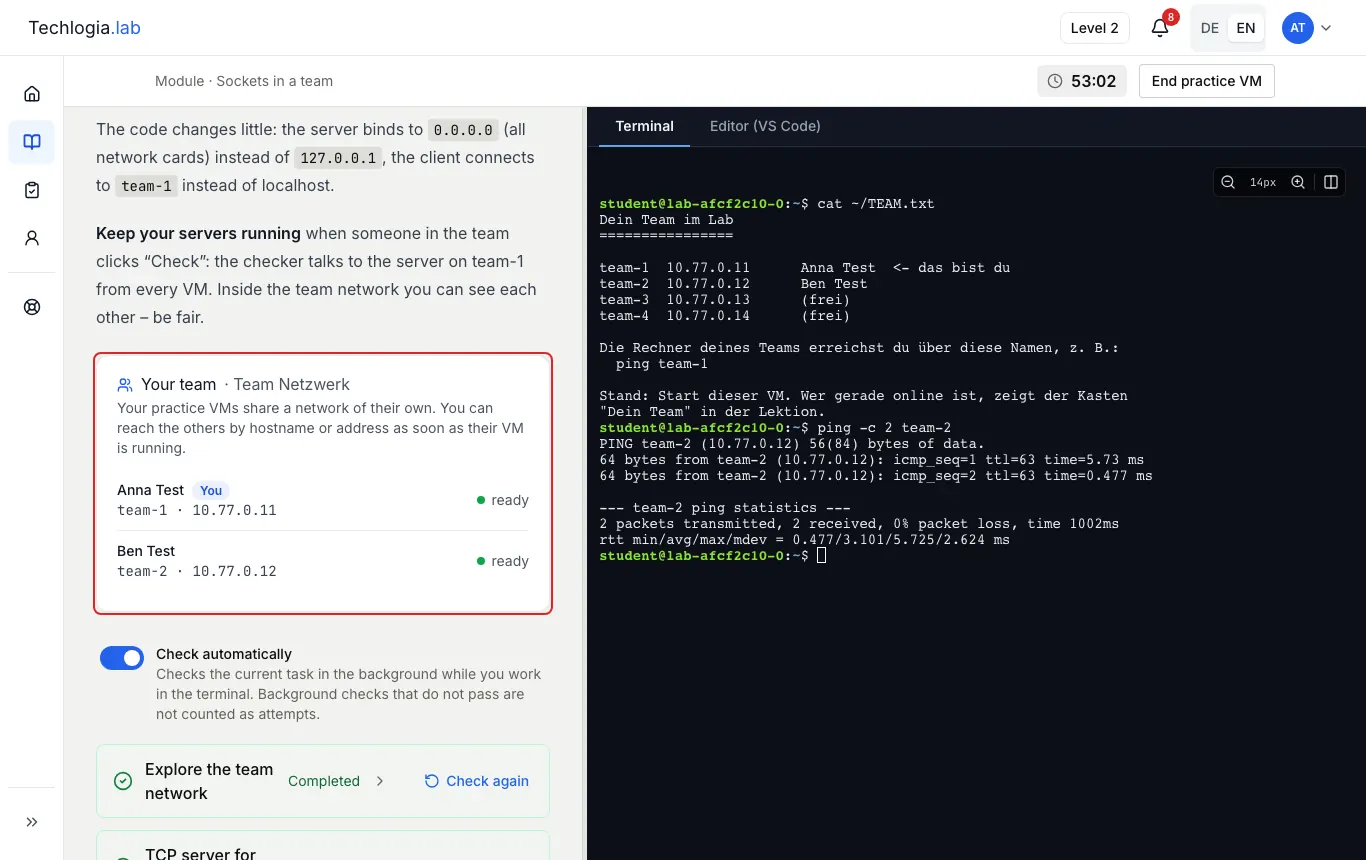
Then click Start practice VM. Ideally everyone starts at about the same time. You can only reach the others once their VM is ready.
2. Look it up in the terminal: ~/TEAM.txt
Your VM has a file TEAM.txt in your home folder. It lists all seats of your team with name on the network,
address and sign-in name. Your own seat is marked <- das bist du (“that's you”), free seats say (frei). The file
is in German.
You reach the others by their name on the network, for example with ping:
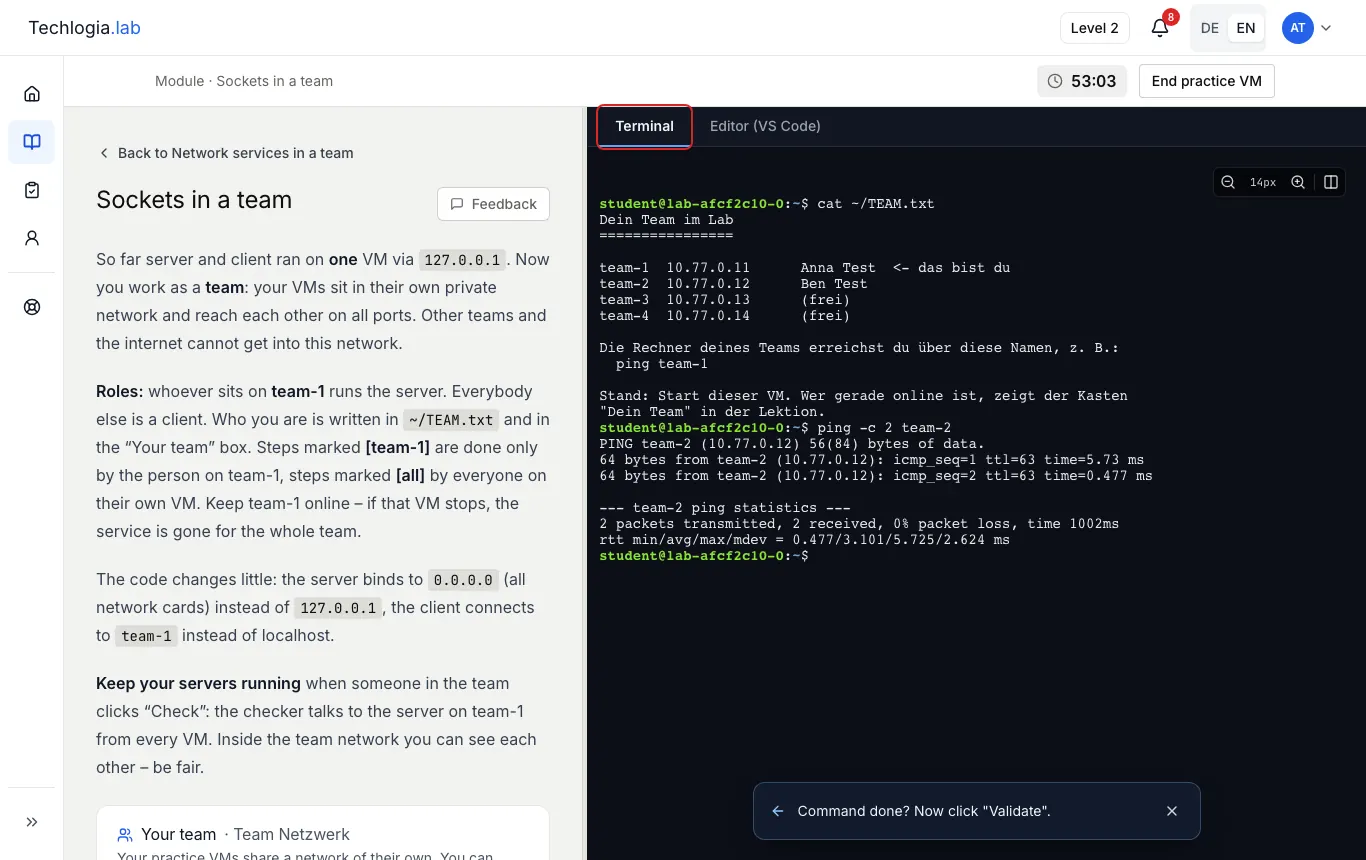
cat ~/TEAM.txt shows your team, ping -c 2 team-2 checks whether Ben is reachable.TEAM.txt shows the state at start
The file is written when your VM starts. Who is online right now is only shown in the Your team box in the lesson.
3. Validating together
For team tasks the checker talks to the server on team-1 from every VM. So:
- Keep your server running while others in the team are still validating.
- If the VM on team-1 stops, the service is gone for the whole team.
- Inside the team network you can see each other. Be fair.
What happens without a team?
The three lessons in the module Network services in a team run only in a team. Other lessons can make the team optional. The Your team box then shows one of two notes:
| Note in the box | Meaning |
|---|---|
| On your own – “You are not in a team. You can also work through this lesson on your own – without a team network.” | You can start the lesson, but your VM is not on a team network. |
| “Your teacher has not assigned you to a team yet. This lesson only runs in a team.” | Starting is blocked until your teacher assigns you to a team. Let them know. |
If your teacher changes the teams, this applies from your next start. A VM that is already running keeps its network and address.
Common problems
ping team-2 gets no reply
- Is the other person's VM already ready? Check the Your team box.
- Did someone in the team switch on the firewall (
ufw enable)? It blocks the team network too. Check withsudo ufw statuson the VM that does not answer.
“This lesson runs on your team's network …”
You wanted to continue on your running VM, but it is not on the network the lesson needs (for example because you worked on a lesson without a team before). Start a new practice VM. More under Switching lessons on the same VM.
The checker says your VM is not on the team network
Restart the lesson (end the practice VM, then start again). If that doesn't help, tell your teacher.
Next step
- Learning in the Lab – terminal, editor, validating and switching lessons in detail.